
How to change your plan, and what each plan includes
ReviewForest has three plans: Standard, Premium and Professional. On each one you pay a base fee per location and a price per tree. We plant a tree for every new review on your connected platforms, unless you’ve reached your planting limit, and bill the trees monthly. With annual billing the base fee is lower. You’ll find the current prices on our pricing page.
What the plans include
Section titled “What the plans include”| Standard | Premium | Professional | |
|---|---|---|---|
| Review platforms per review forest | 1, plus ReviewForest Direct | All | All |
| Email review invitations | Unlimited | Unlimited | Unlimited |
| SMS review invitations included per review forest and month | 10 | 50 | 100 |
| Website widgets | All | All | All |
| Star rating in Google search results | No | Yes | Yes |
| Your own logo on your forest page | No | Yes | Yes |
| Brand forest for several locations | No | No | Yes |
| Price per tree | Highest | Lower | Lowest |
- All platforms means one connection per platform in each review forest. For a second Google location, you add a second review forest.
- For star ratings in Google search, our widget adds the code Google needs. You switch it on in the widget settings, and whether Google actually shows the stars is up to Google.
- SMS invitations beyond the included number cost extra.
- On Professional, review forests with only Amazon products don’t add to the base fee.
Change your plan
Section titled “Change your plan”-
Log in and open Billing & plan. You’ll find it in the menu on the left under More.
-
Under Plan details, click Change plan.
-
Click Upgrade plan or Downgrade plan on the plan you want. Your current plan is marked Currently selected.
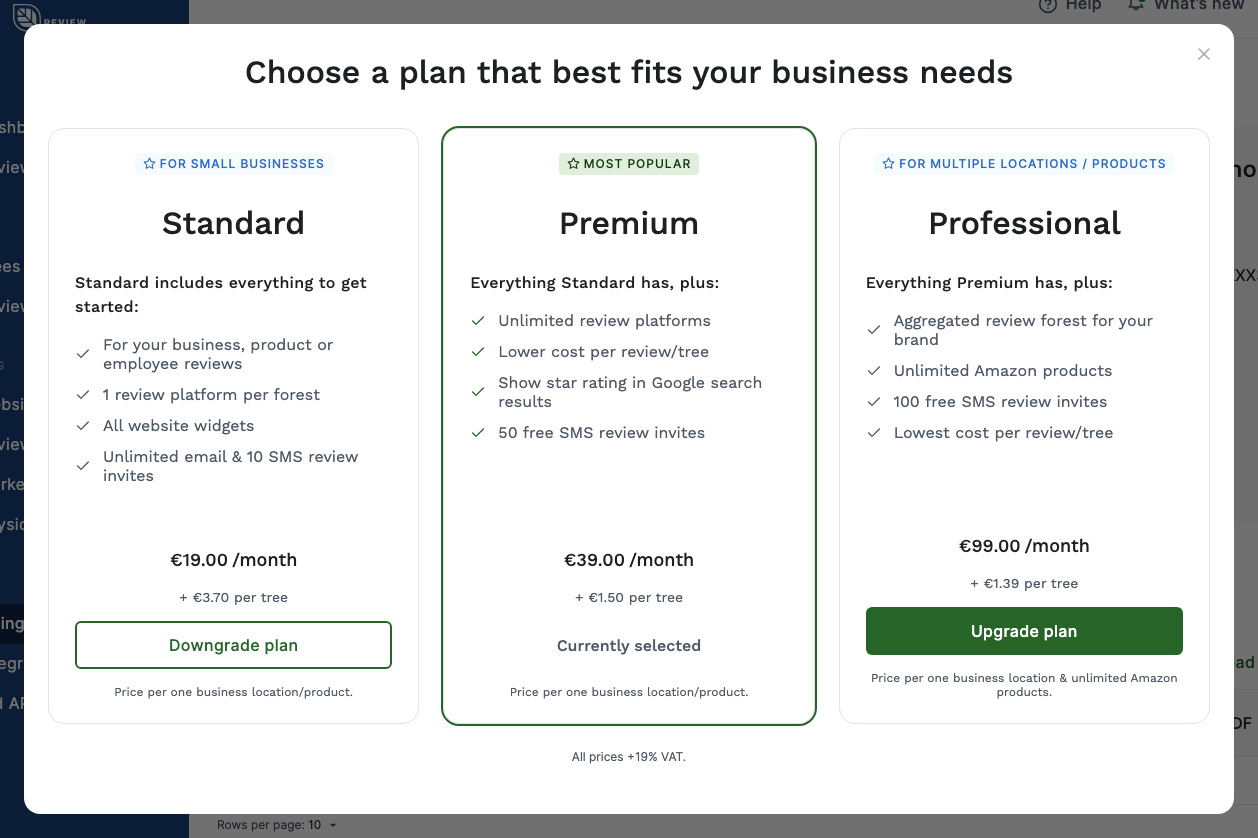
-
If you’re downgrading, tick every point in the list and click Downgrade to followed by the plan name. The list shows what you’ll lose, see Before you downgrade.
-
Choose Annual billing or Monthly billing. The window shows the total for your review forests and how much credit from your current plan we apply.
-
Click Confirm new plan.
The new plan applies right away.
No Change plan button? It’s hidden while a cancellation is pending. Revoke the cancellation first. If your subscription isn’t activated yet, you pick your plan when you activate it.
What changes on your invoice
Section titled “What changes on your invoice”- If you keep your billing interval, we settle the difference between the old and the new plan for the rest of your current period on your next invoice for the plan fee. Depending on the change, that’s an extra charge or a credit.
- If you switch between monthly and annual billing, your new billing period starts the same day. We invoice it right away and credit the unused part of your current period.
- The new price per tree applies to all trees we haven’t invoiced yet, which can include trees planted earlier this month.
Before you downgrade
Section titled “Before you downgrade”When you downgrade to Standard:
- Each review forest keeps one review platform: the one you pinned, or otherwise the one at the top of your platform list. Pin the one you want to keep before you downgrade, see How to manage your review platforms. ReviewForest Direct stays as well. The other platforms are switched off in the forest, and your widgets only show the remaining one. Your reviews on Google and other platforms stay where they are.
- Your widgets no longer add the code for star ratings in Google search.
- A brand forest is no longer available.
- The price per tree goes up.
When you downgrade from Professional to Premium:
- A brand forest is no longer available.
- Review forests for Amazon products can raise your base fee.
- The price per tree goes up.
Switch between monthly and annual billing
Section titled “Switch between monthly and annual billing”You choose the billing interval in step 5 when you change your plan. Annual billing costs less per month. To switch only the interval and keep your plan, write to us at [email protected] or in the chat. There’s no button for that in the app.
On a discontinued plan
Section titled “On a discontinued plan”If Billing & plan shows Discontinued plan, you’re on an older plan that we no longer offer. Click Upgrade plan to switch to one of the current plans. With annual billing, you get a discount on the base fee as a long-standing customer. The window shows the price before you confirm. Monthly billing comes without a discount.
Once you’ve switched, you can’t go back to the discontinued plan. If you change your plan again later, the discount ends.
Add a promo code
Section titled “Add a promo code”-
Open Billing & plan and click I have a promo code under Plan details.
-
Enter your code and click Apply promo code. The prices update right away.
A code only works on an active subscription, and only one discount can run at a time. On a discontinued plan or while a cancellation is pending, the link is hidden. If you want to use a code when you first activate your subscription, see Apply a voucher during activation.
Add another location
Section titled “Add another location”Each location gets its own review forest. Go to Review forests and click New review forest. For Google, you can select several locations at once, and each one gets its own review forest. Before you finish, the window shows what each additional review forest costs per month or year.
On a discontinued plan, you need to upgrade first.