
How to change your bank account or payment method
Switched banks, or want to pay from a different account? You enter the new bank details yourself in ReviewForest, and it only takes a few minutes. While you’re at it, you grant us a new SEPA Direct Debit mandate online. There’s no paper form, and we don’t need to approve anything.
If your company name has changed too, update it under Billing details first. It appears as the account holder on the new mandate.
How to enter your new IBAN
Section titled “How to enter your new IBAN”-
Log in and open Billing & plan in the menu on the left.
-
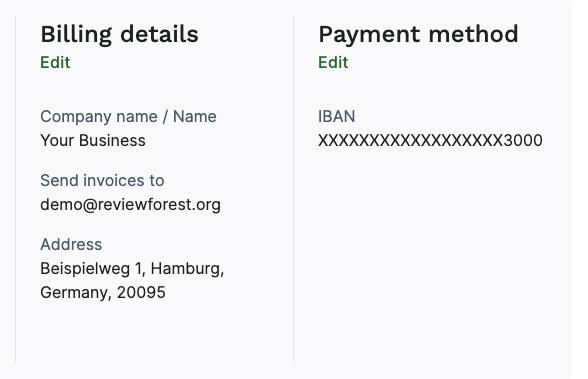
Under Payment method, click Edit.
-
In the Edit payment method window, choose SEPA Direct Debit and enter your new IBAN. The mandate text appears below the field.
-
Click Save changes.
Your new IBAN now shows under Payment method. You’ll only see the last four digits, but that’s enough to check that the change worked.
If you’d rather pay by card, choose card instead of direct debit in the same window.
What happens after you save
Section titled “What happens after you save”- We remove your old payment method automatically. You don’t need to delete the old IBAN anywhere.
- New invoices go to your new payment method. That applies to every invoice created after you save.
- Direct debit pre-notifications come by email. They go to the address shown under Billing details, below “Send invoices to”. To change that address, see How to change the billing email address.
Is an invoice already open, for example because a direct debit was returned? You pay that one separately. See Outstanding invoices.
Why you enter your bank details yourself
Section titled “Why you enter your bank details yourself”A new IBAN means a new SEPA Direct Debit mandate, and that mandate should come from you. That’s why your ReviewForest account is the place to change it. It also means you don’t have to email us your bank details.