How the tree certificates work
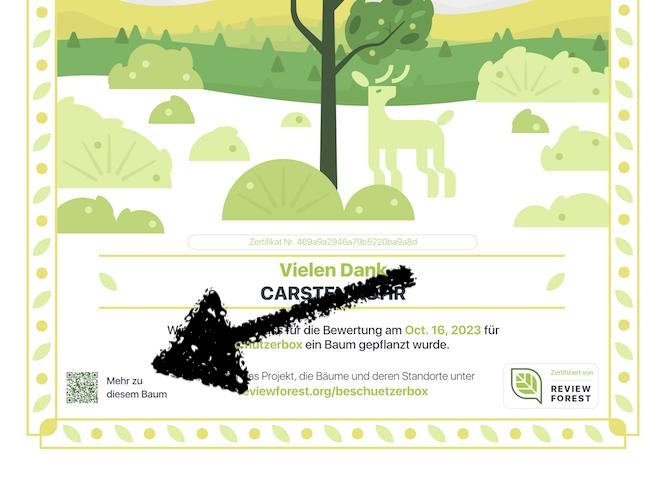
ReviewForest automatically creates a certificate in PDF format for every tree planted. If you like, you can share these certificates with your customers.
How your customers receive the certificate
Section titled “How your customers receive the certificate”Tree certificates are not shared with customers automatically.
There are a couple of reasons for this:
- Google and other review platforms don’t share enough data about reviewers to automatically match and send out the certificates. All you get is a name, which isn’t necessarily a real name.
- In some cases, you may not want the reviewer to receive the tree certificate at all.
Your customers can view their tree in your review forest themselves at any time. If you’d also like to send them the certificate, you’ll need to do this manually. To do so, try to match the name from the review platform, download the certificates, and email them to your customers. We kindly ask you to skip paper printouts and use the digital certificate instead.
Sample email texts you can send to your customers
Section titled “Sample email texts you can send to your customers”Dear [Customer name],
We'd like to sincerely thank you for taking the time and effort to review us on [INSERT REVIEW PLATFORM]. As a small token of our gratitude, we've partnered with ReviewForest & [INSERT TREE-PLANTING ORGANIZATION] to plant a tree in your name, so that together we can help build a better environment.
Attached you'll find a tree certificate confirming the planting. Using the QR code on the certificate, you can learn more about the project and see your tree in our digital review forest.
Thank you for your trust in [Company name]. We look forward to supporting you in the future as well.
Best regards,How to find the certificates
Section titled “How to find the certificates”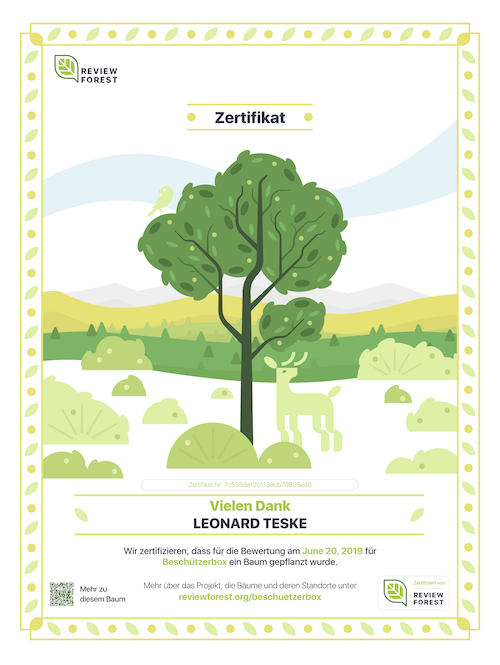
-
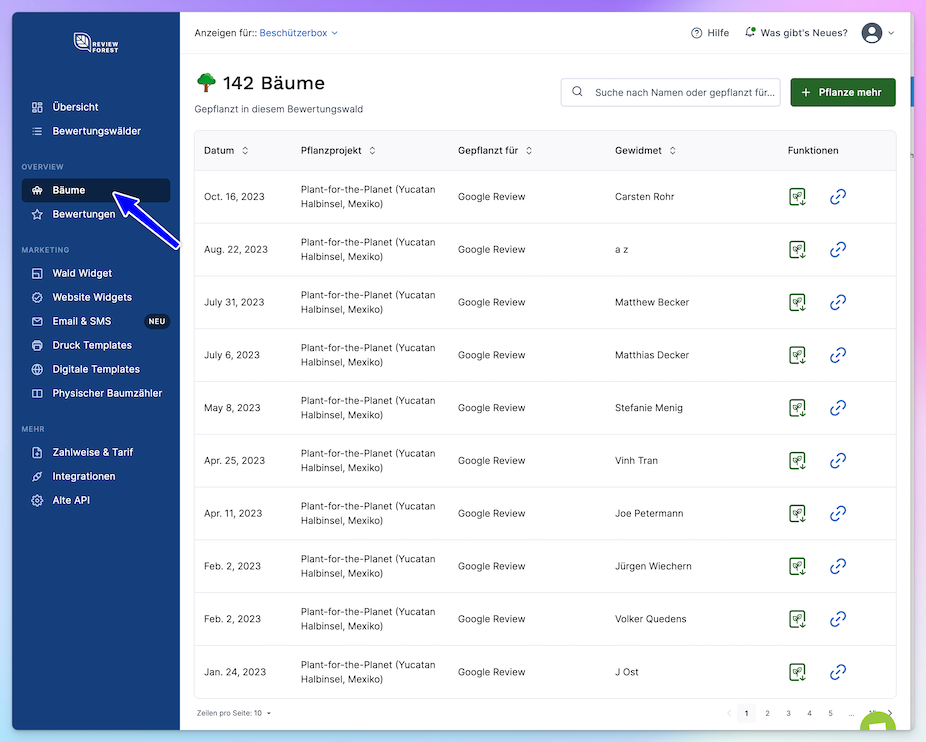
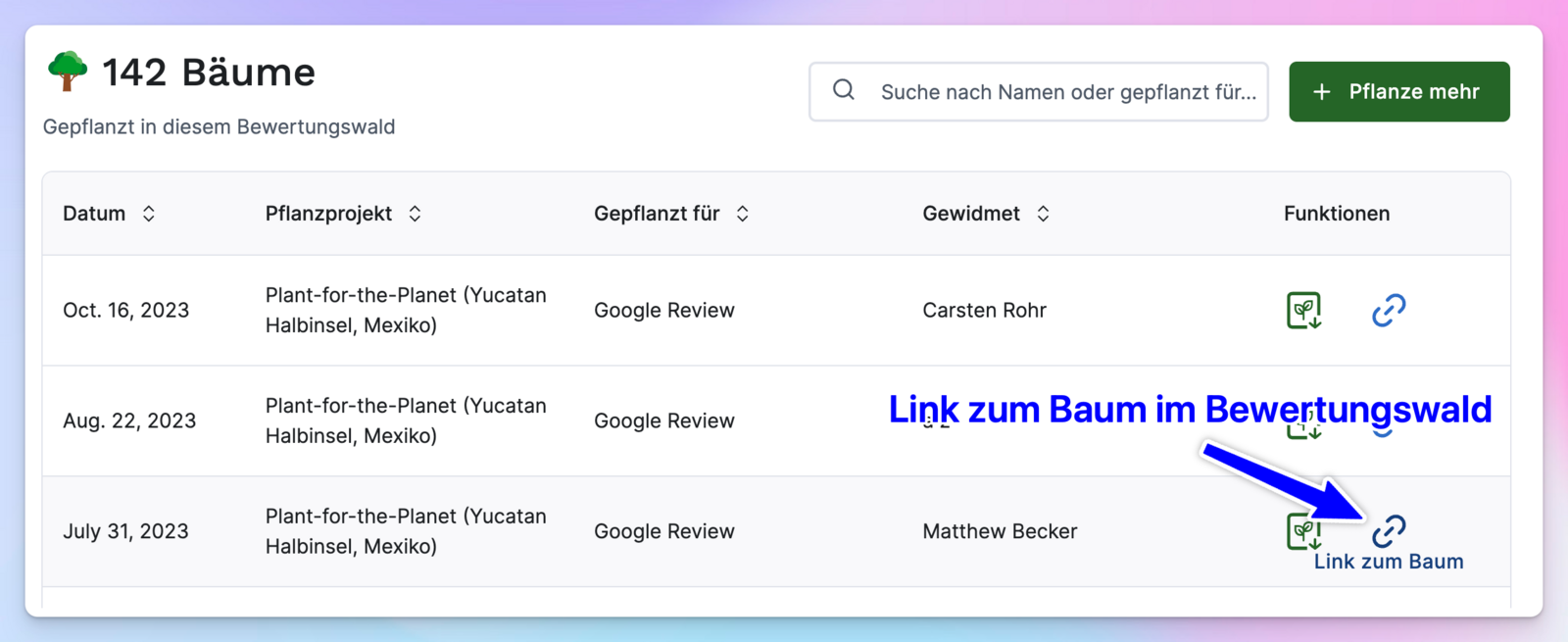
Go to Trees
-
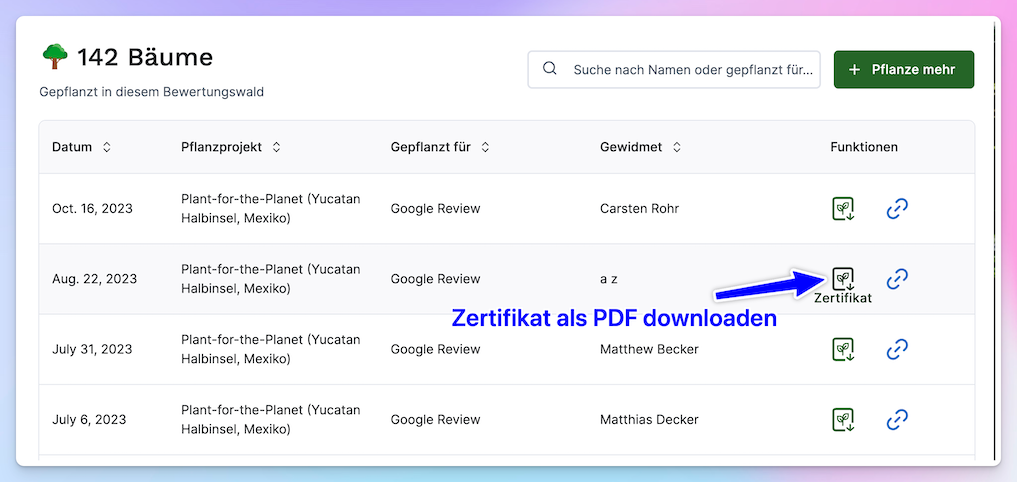
Click the seedling icon to download the certificate.
-
Alternatively, you can get the link to the tree by clicking the icon right next to it. The link to the tree in the review forest will then be copied to your clipboard.
The link then takes you to your review forest, with the tree highlighted:
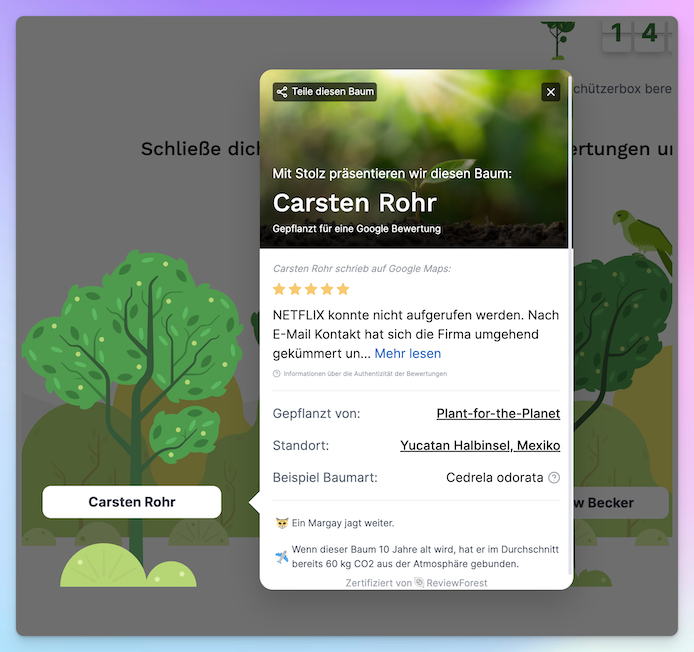 By the way, this is the same link as the QR code on the certificate.