How to Manage Your Review Platforms (Add, Delete, Reorder...)
**You have several options for managing the review platforms connected to your review forest. **
- You can add more platforms
- You can delete existing connections to review platform(s)
- You can “pin” one of the review platforms to display it at the very top as a review option
- You can set the order of the platforms
Note: these features are only available on the Premium and Professional plans.
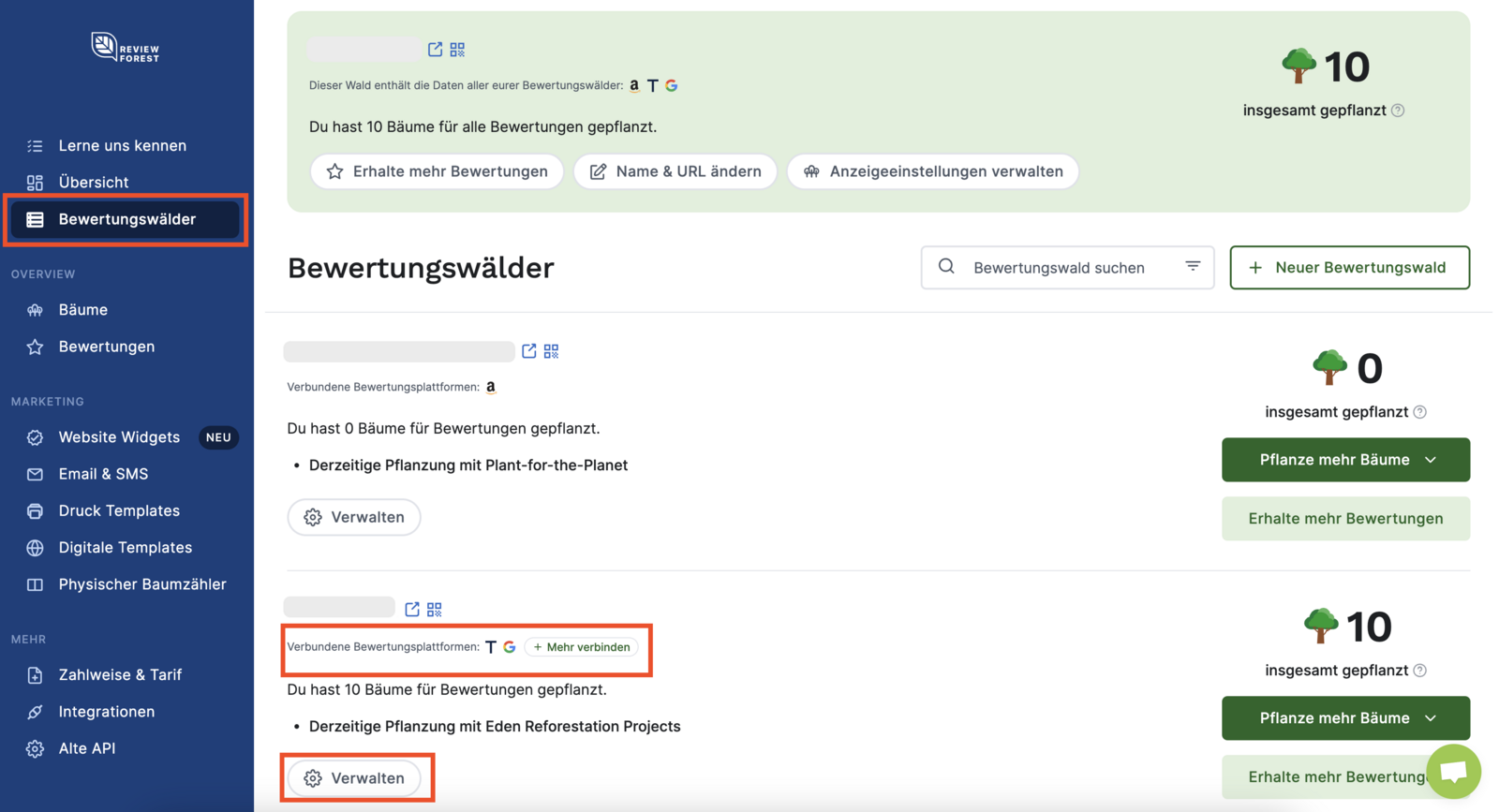
You’ll find all of these features in your member area under “Review forests”
Section titled “You’ll find all of these features in your member area under “Review forests””-
Go to “Review forests”
-
Navigate to the review forest that is already connected to multiple platforms, or that you’d like to connect
-
Click “Manage”
-
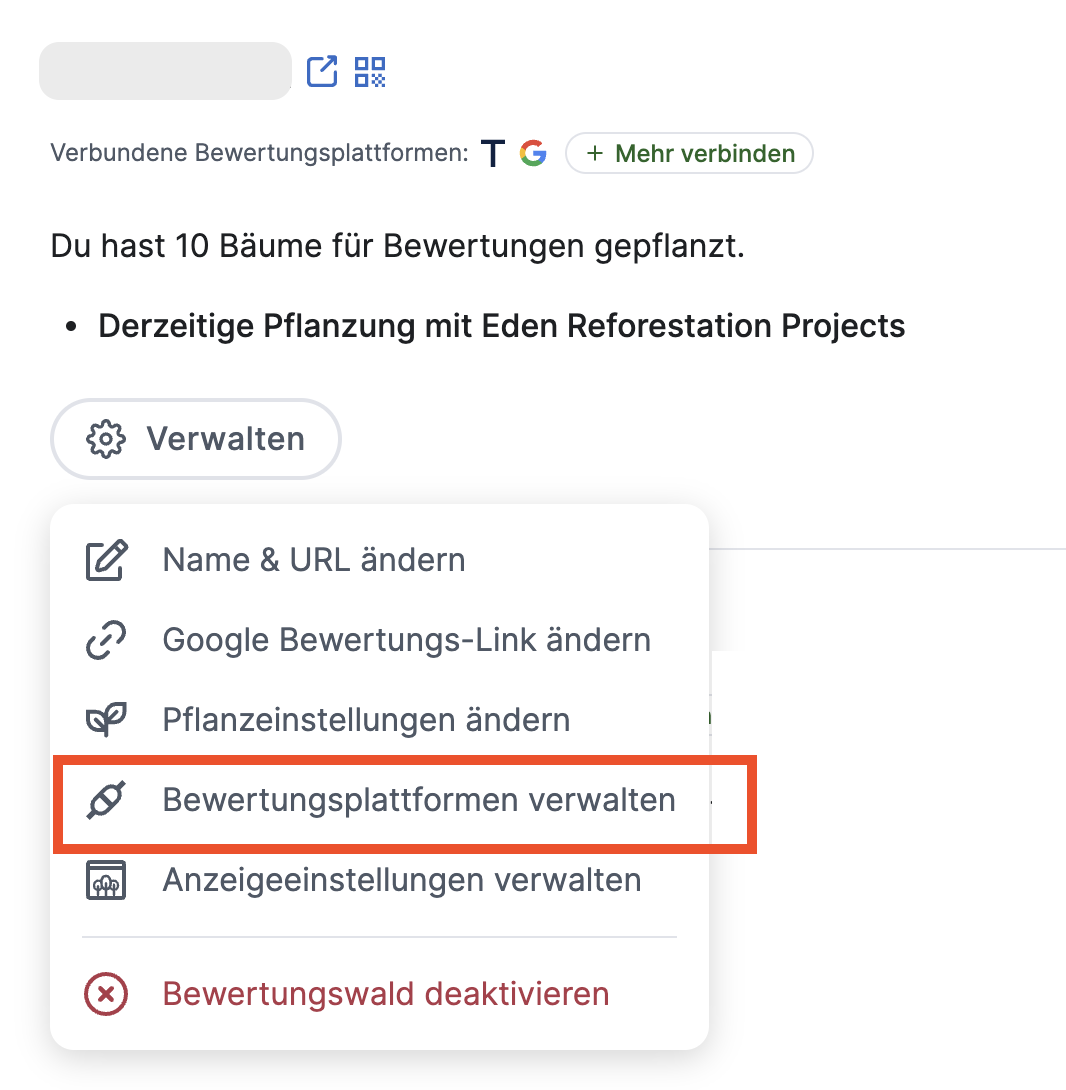
In the menu that opens, click “Manage review platforms”
1 Add more review platforms to your review forest
Section titled “1 Add more review platforms to your review forest”- First, follow steps 1 - 4
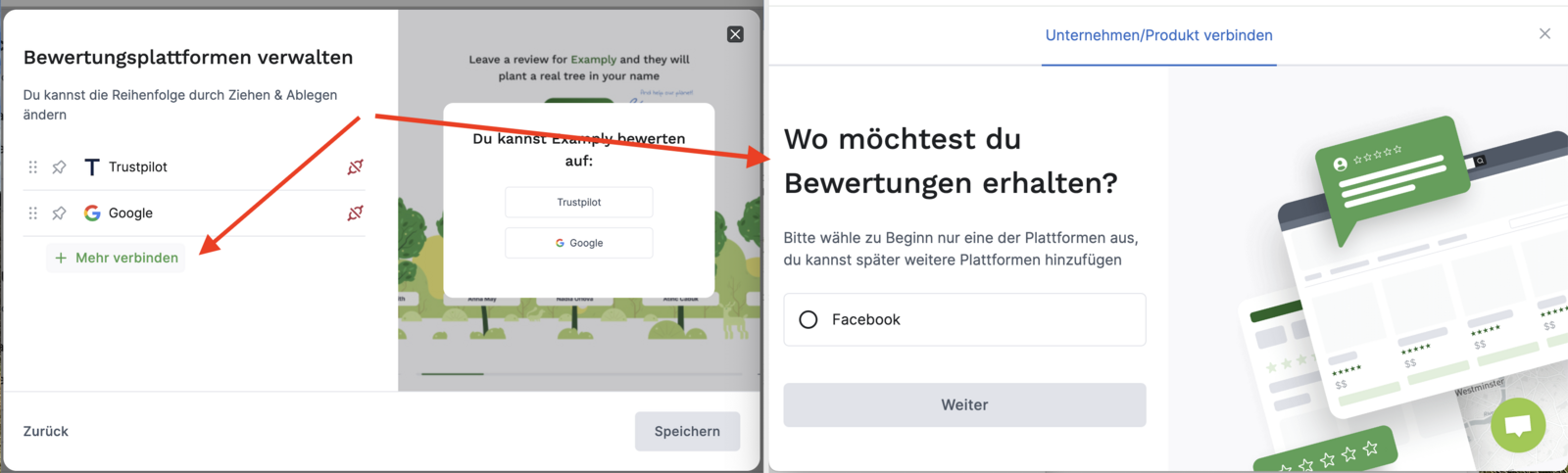
- Click “+Connect more” to add additional platforms. The remaining options will be shown to you.
- From the review platforms displayed, select the one you’d like to connect.
- Complete the connection by following the on-screen instructions
2 Delete existing connections to review platform(s)
Section titled “2 Delete existing connections to review platform(s)”- First, follow steps 1 - 4
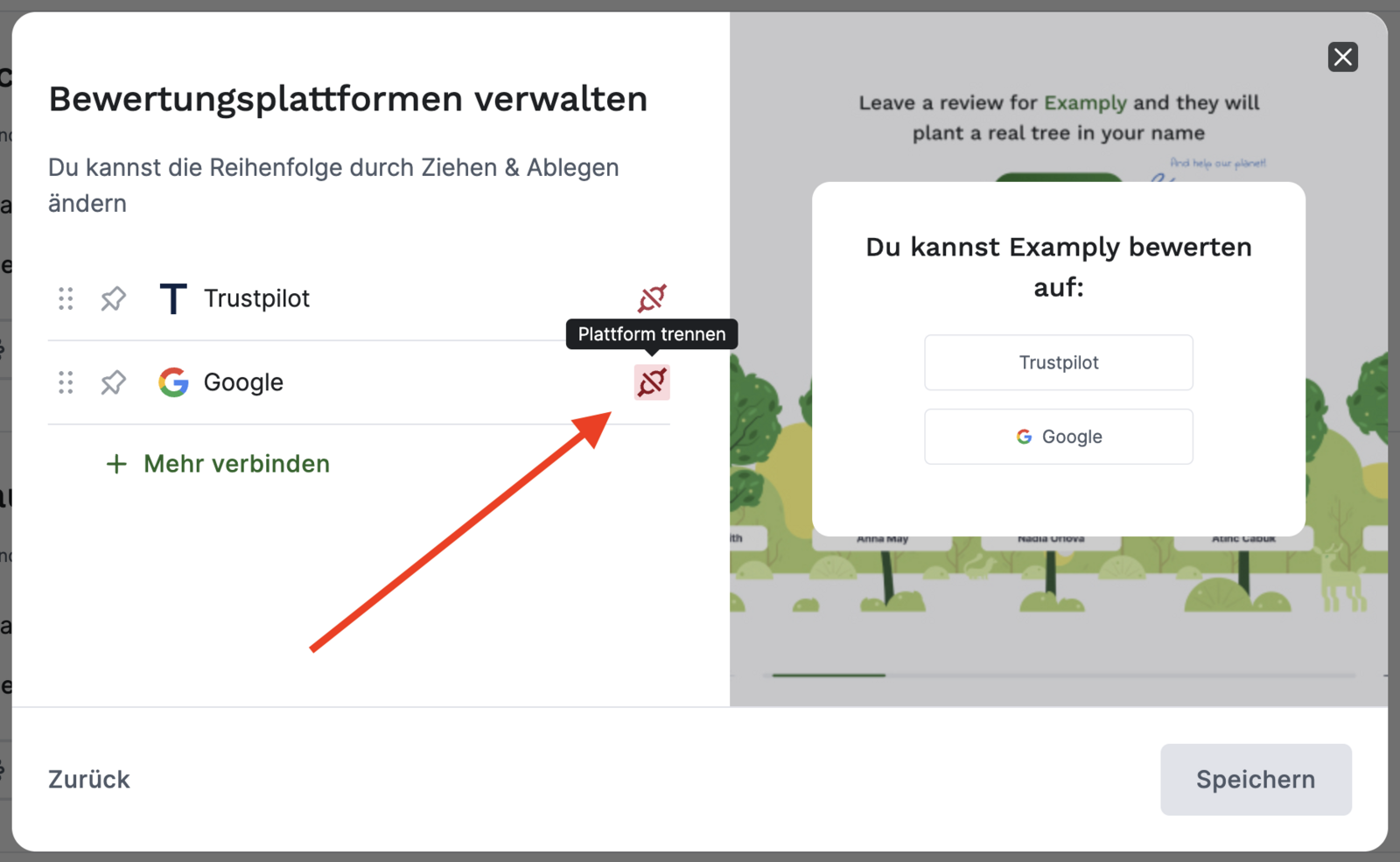
- Navigate to the review platform you’d like to disconnect from your review forest. You’ll find an icon next to the platform’s name.
- Click the “Disconnect platform” icon.
- Confirm the details in the info window that opens and confirm the “disconnection”
3 “Pin” review platforms & display them at the very top as a review option
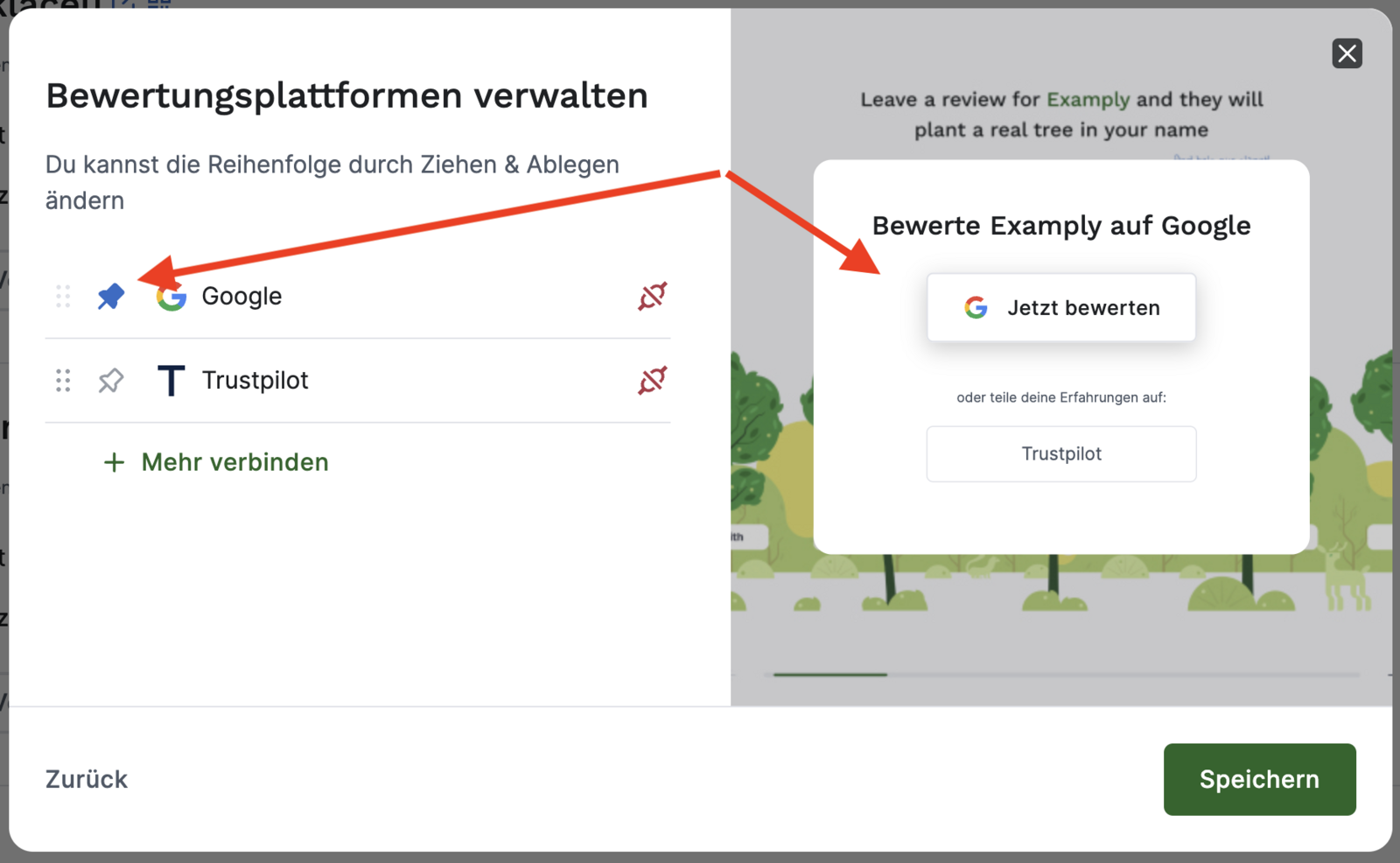
Section titled “3 “Pin” review platforms & display them at the very top as a review option”To guide your customers toward reviewing you on your preferred review platform, you can “pin” the relevant review platform in your review forest. This displays that review platform at the very top of the list of options for reviewing you.
- First, follow steps 1 - 4
- Click the pin icon in front of the name of the review platform you’d like to display at the very top.
On the right side, you’ll see how your setting will appear to your customers on your review forest page once they click the “Review now” button.
4 Change the order of the platforms
Section titled “4 Change the order of the platforms”You can change the order of your connected platforms.
- First, follow steps 1 - 4
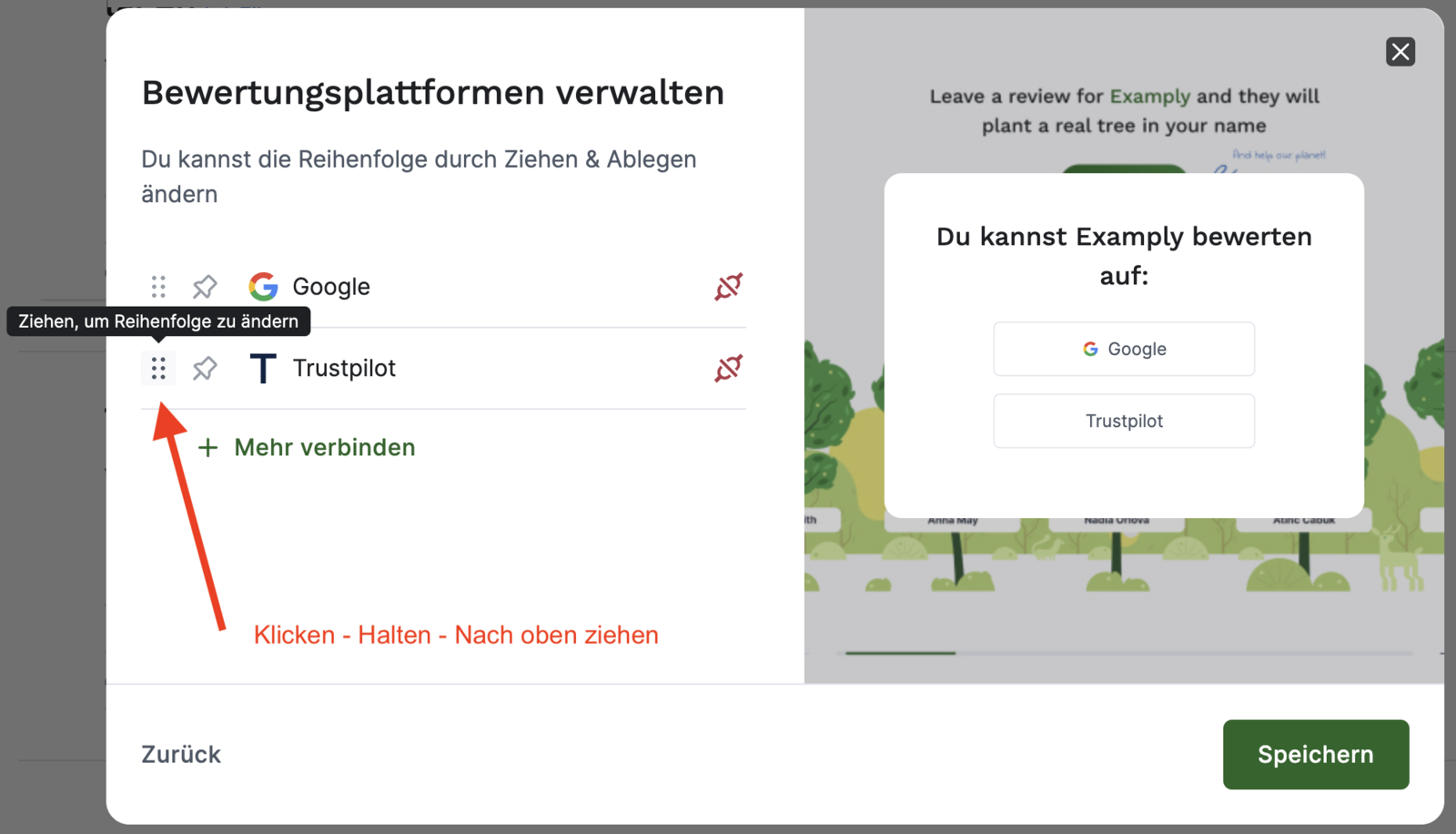
- Click the dots in front of the review platform you want to move.
- Hold the mouse button down and drag the platform up (or down).
On the right side, you’ll see how your setting will appear to your customers on your review forest page once they click the “Review now” button.