
How to link directly to the ReviewForest Direct review form
Every review forest has a public page, for example:
https://reviewforest.org/your-business
If ReviewForest Direct is connected to your review forest as a platform, there is also a link that opens the review form directly:
https://reviewforest.org/your-business/review
your-business stands for the part of the address that belongs to your review forest.
When the direct link is worth using
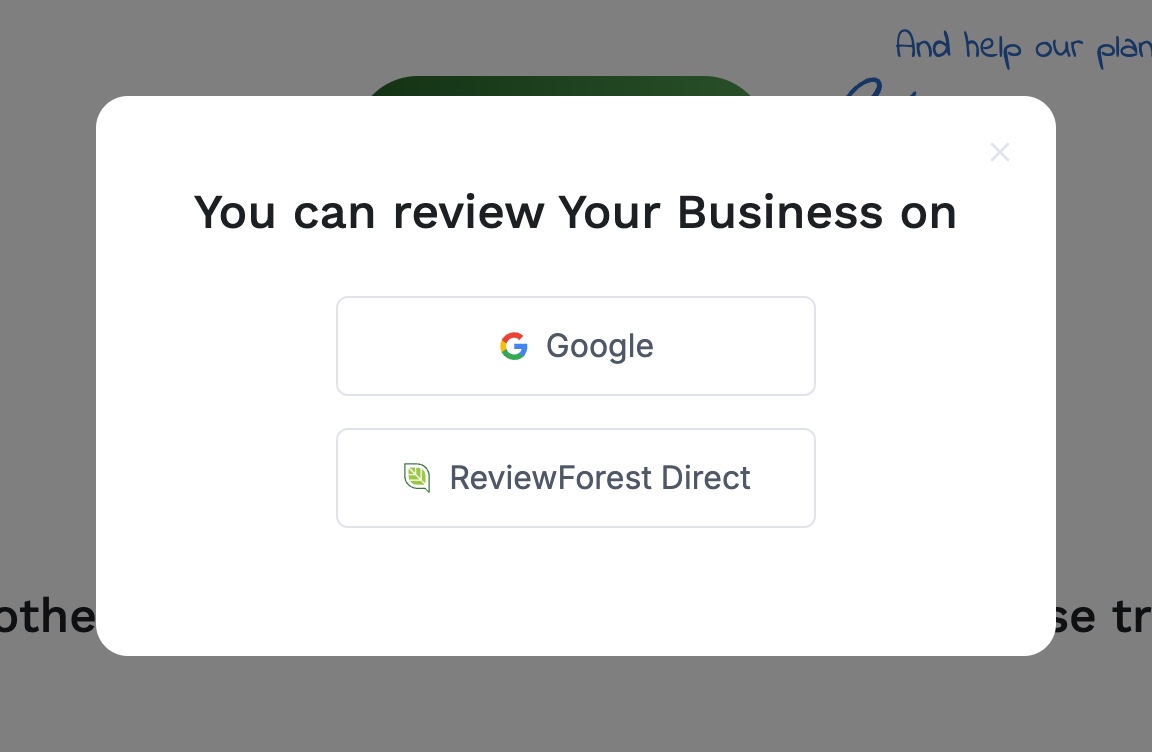
Section titled “When the direct link is worth using”On your review forest page, the “Write a review” button leads straight to the form as long as ReviewForest Direct is the only connected platform. If several platforms are connected, for example Google and ReviewForest Direct, a selection window opens first.
The direct link skips that selection. Your customers land in the ReviewForest Direct form right away.
How to build the link
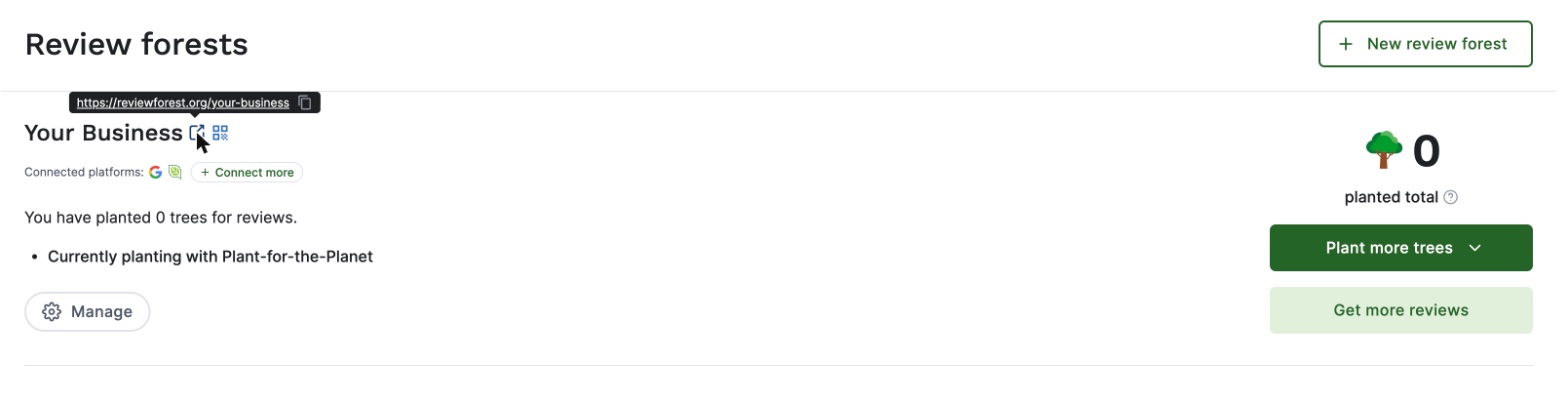
Section titled “How to build the link”- Go to Review forests in your ReviewForest Dashboard
- Hover over the link icon next to the name of your review forest. It shows the address of your forest, for example
https://reviewforest.org/your-business - Copy that address with the copy icon next to it
- Add
/reviewto the end of the address:https://reviewforest.org/your-business/review - Open the finished link once in your own browser and check that the form appears. If you land on your review forest page instead, ReviewForest Direct is not connected to this review forest. How to Manage Your Review Platforms (Add, Delete, Reorder…) explains how to connect it
Setting the language of the form
Section titled “Setting the language of the form”The form is available in German, English and French. Without a language parameter, it follows your customer’s browser language. If the browser uses any other language, the form appears in English.
If you want to set the language yourself, use one of these links:
- German:
https://reviewforest.org/your-business/review?lang=de - English:
https://reviewforest.org/your-business/review?lang=en - French:
https://reviewforest.org/your-business/review?lang=fr
Requirements
Section titled “Requirements”Your customers can only submit a review through the link if all of this is true:
- ReviewForest Direct is connected to your review forest
- Your review forest is active
- You have an active subscription on a paid plan. ReviewForest does not accept reviews on the free plan
- Your review forest has not reached its tree planting limit
If your review forest is not active or you are on the free plan, the form still opens but shows a notice. The submit button is disabled in that case.
If the tree planting limit has been reached, the form can still be filled in, but submitting it shows an error message. Setting Your Tree Planting Limit explains how to change the limit.
What your customers fill in
Section titled “What your customers fill in”Your customers give a star rating, can optionally add a text and their name, and enter their email address.
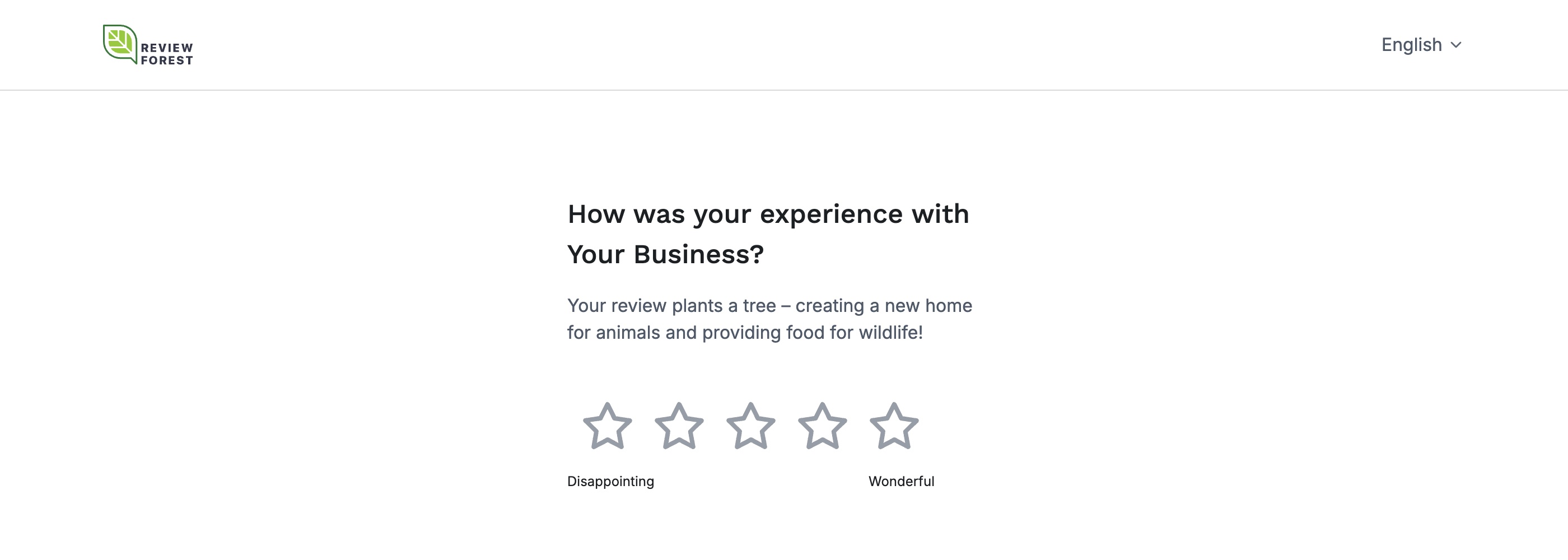
After submitting, your customer receives an email with a confirmation link. The review is published and the tree planted only after they click that link.
Each email address can leave one review per review forest. That also applies if the first review has not been confirmed by email yet.
For a step-by-step look at the form, see How to leave a review on ReviewForest Direct.
Where you can use the link
Section titled “Where you can use the link”- In email automations after a purchase, for example in ActiveCampaign or KlickTipp
- In your email signature
- On the thank-you page after a purchase
- In course or customer portals