How to plant additional trees
Every tree contributes to a greener future. With ReviewForest, you can plant trees not only through reviews but also for special occasions. Perfect for marketing campaigns like “A tree for every sale,” as a corporate anniversary gift, or for reviews on platforms without a direct ReviewForest integration.
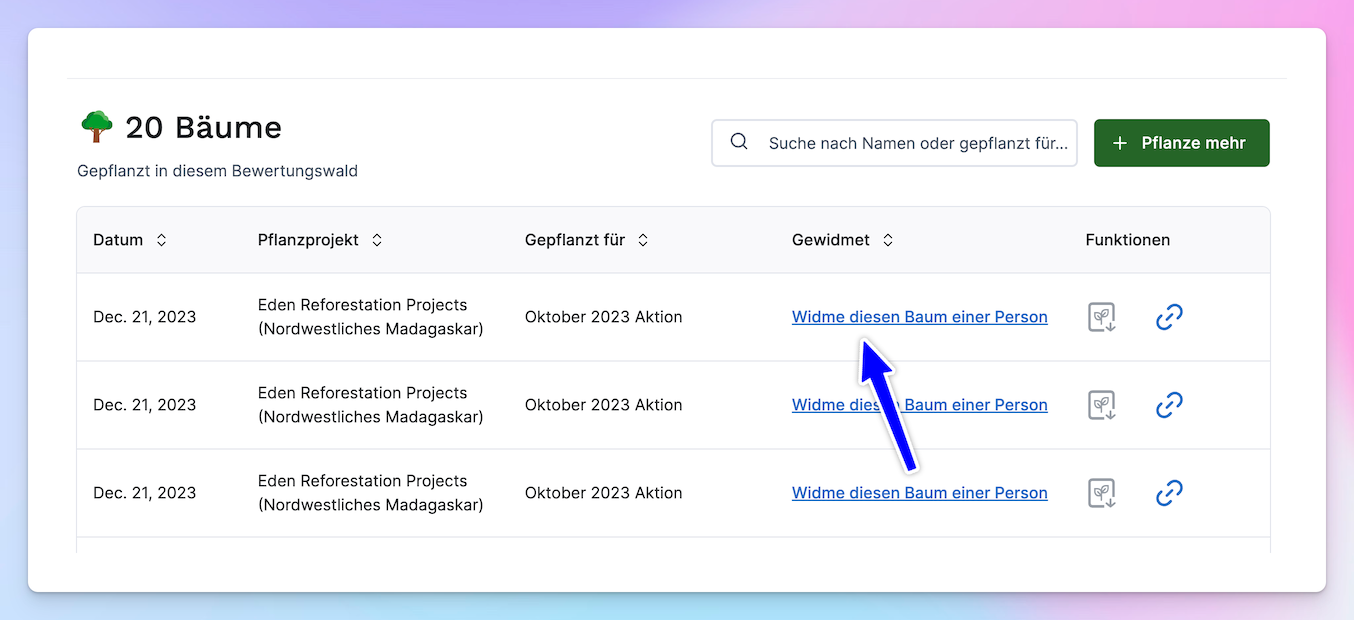
With the “Additional trees” feature, you can plant trees individually and flexibly. For every tree, you receive a tree certificate that you can download in the “Trees” section – a wonderful way to bring someone joy! And of course, the tree is also displayed in your review forest.
Step by step: Planting additional trees
Section titled “Step by step: Planting additional trees”Step 1: Select a review forest Go to Review forests, choose the forest you want, and click Plant more trees > additional trees.
Step 2: Set the number of trees and the planting rhythm Specify how many trees you want to plant and whether you want to do this once or on a recurring basis (e.g. monthly for each employee).

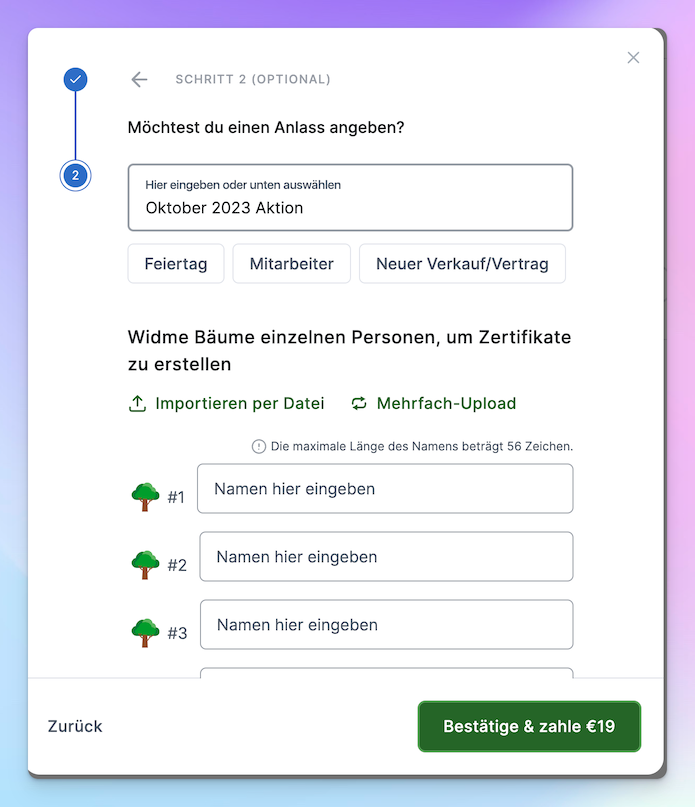
Step 3: Define names and occasion Here you can enter names and occasions for the tree planting. These are shown next to the tree in the review forest.
Options for names:
- Direct entry
- Upload as Excel or CSV (Import as file)
- Multiple upload
- Enter later under Trees
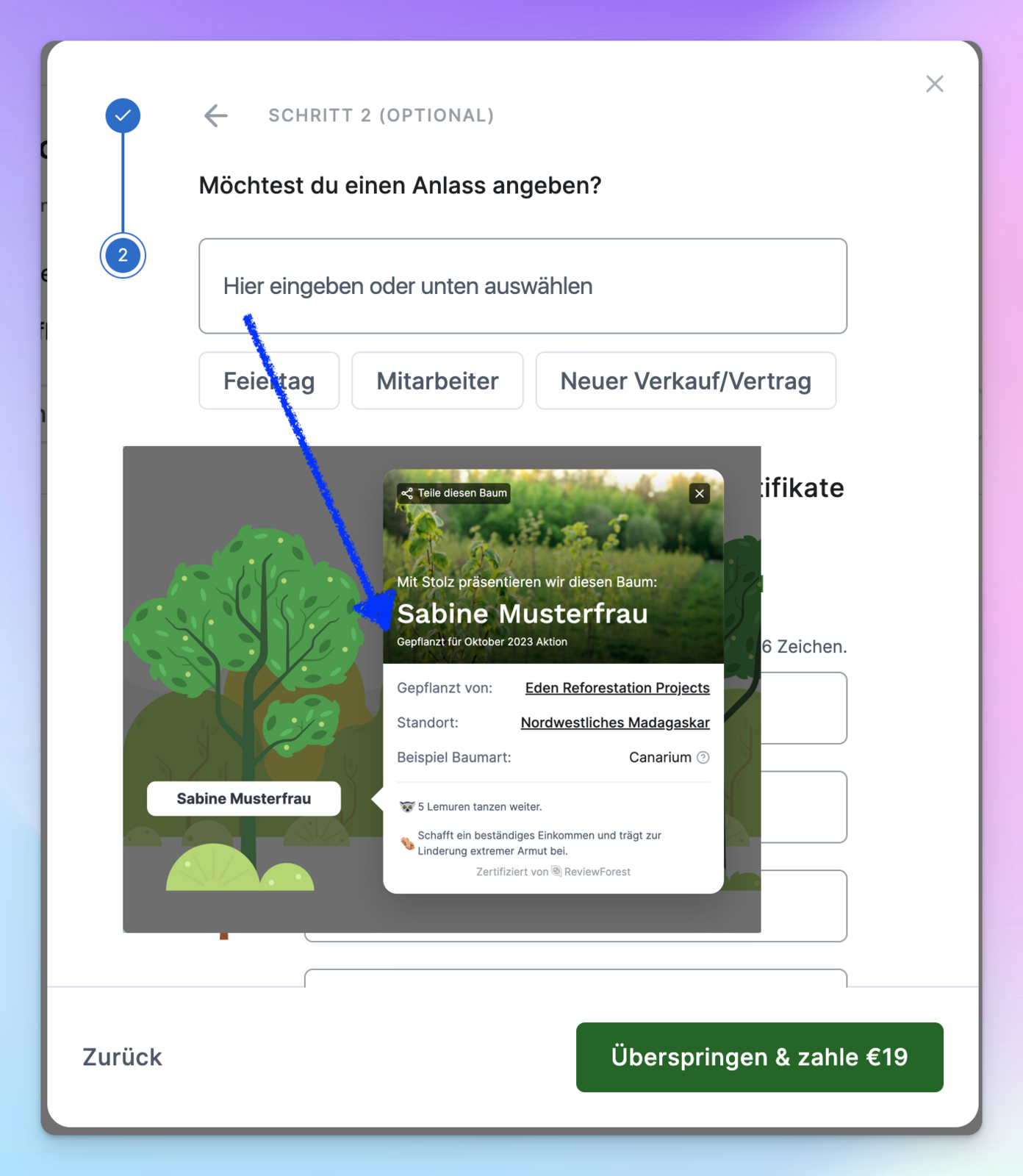
The occasion appears in the detail view of the tree in your review forest
Step 4: Download the tree certificate Once a tree has been dedicated to a name, you can download the certificate in the Trees section.