
Upgrade your widgets to Widget V2
ReviewForest Widget V2 is a complete rebuild of our badge and carousel widgets. They load much faster, no longer interfere with your website’s styling, and you can finally customize their colors to match your brand. Upgrading takes one click, and the embed code on your website stays exactly the same.
Why upgrade
Section titled “Why upgrade”Faster loading and better PageSpeed. V2 widgets are about 60% smaller (roughly 135 KB down to 55 KB). If Google PageSpeed ever flagged your ReviewForest widget as a speed issue, V2 is the fix.
No more style conflicts. Each V2 widget runs in its own isolated container (a “Shadow DOM”). Your website’s CSS can’t accidentally break the widget, and the widget’s styles can’t leak out and affect the rest of your page.
Custom colors and style. You can adjust the background, text, border, corner roundness and button colors so the widget fits your brand. See Customize your widget’s colors and style.
Built-in accessibility. V2 widgets ship with screen-reader labels, keyboard navigation and proper color contrast, so they work for everyone who visits your site.
Which widgets can be upgraded
Section titled “Which widgets can be upgraded”The upgrade is available for the badge and carousel widgets:
- Review score badge
- Tree counter badge
- 2 in 1 badge
- Mini review score
- Mini tree counter
- Carousel
The Review forest widget (the full review-forest page widget) keeps its current version for now, so it has no upgrade button.
How to upgrade
Section titled “How to upgrade”-
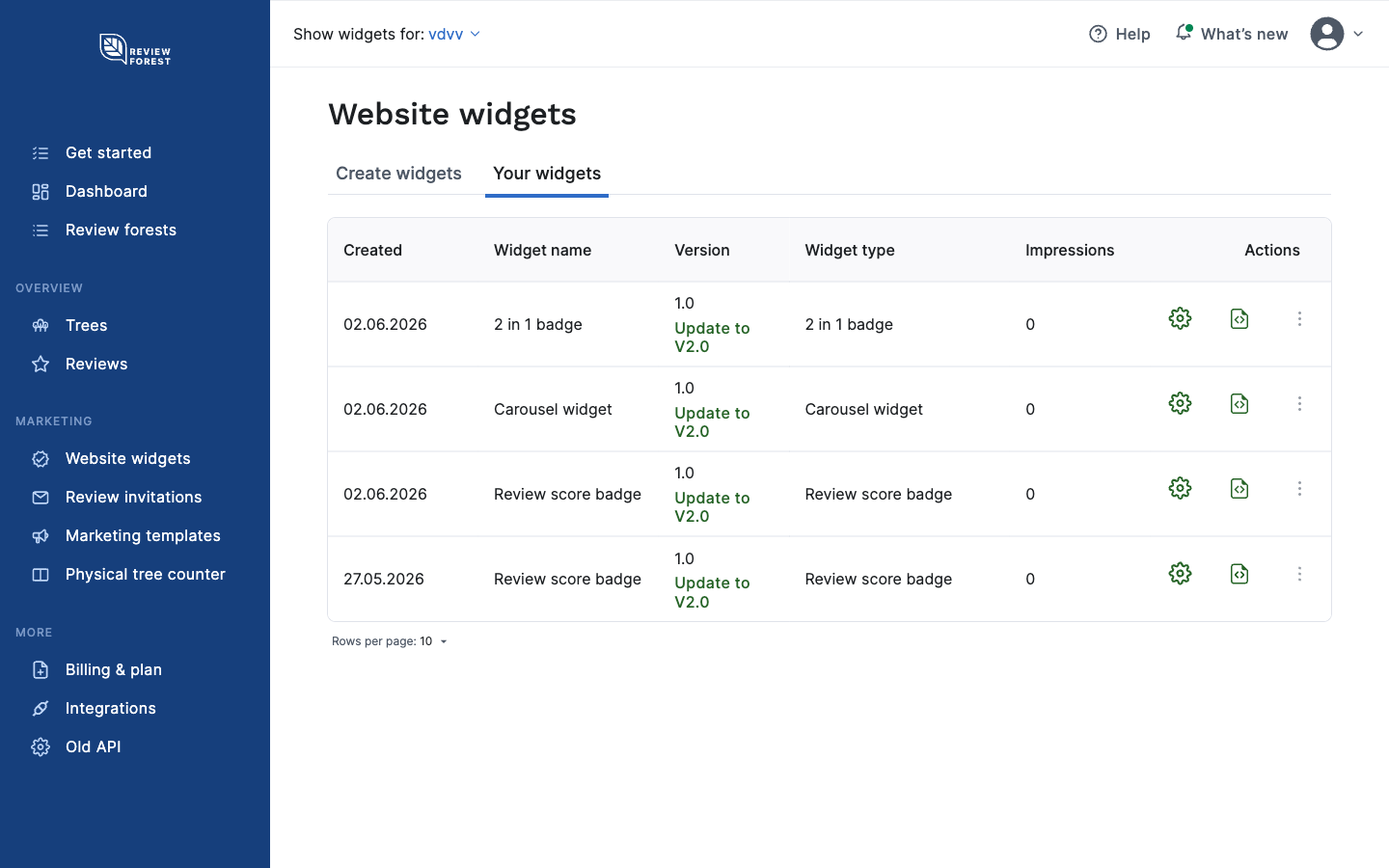
Open Website widgets in the left menu and switch to the Your widgets tab.
-
Look at the Version column. Any widget that can be upgraded shows a green Update to V2.0 link.
-
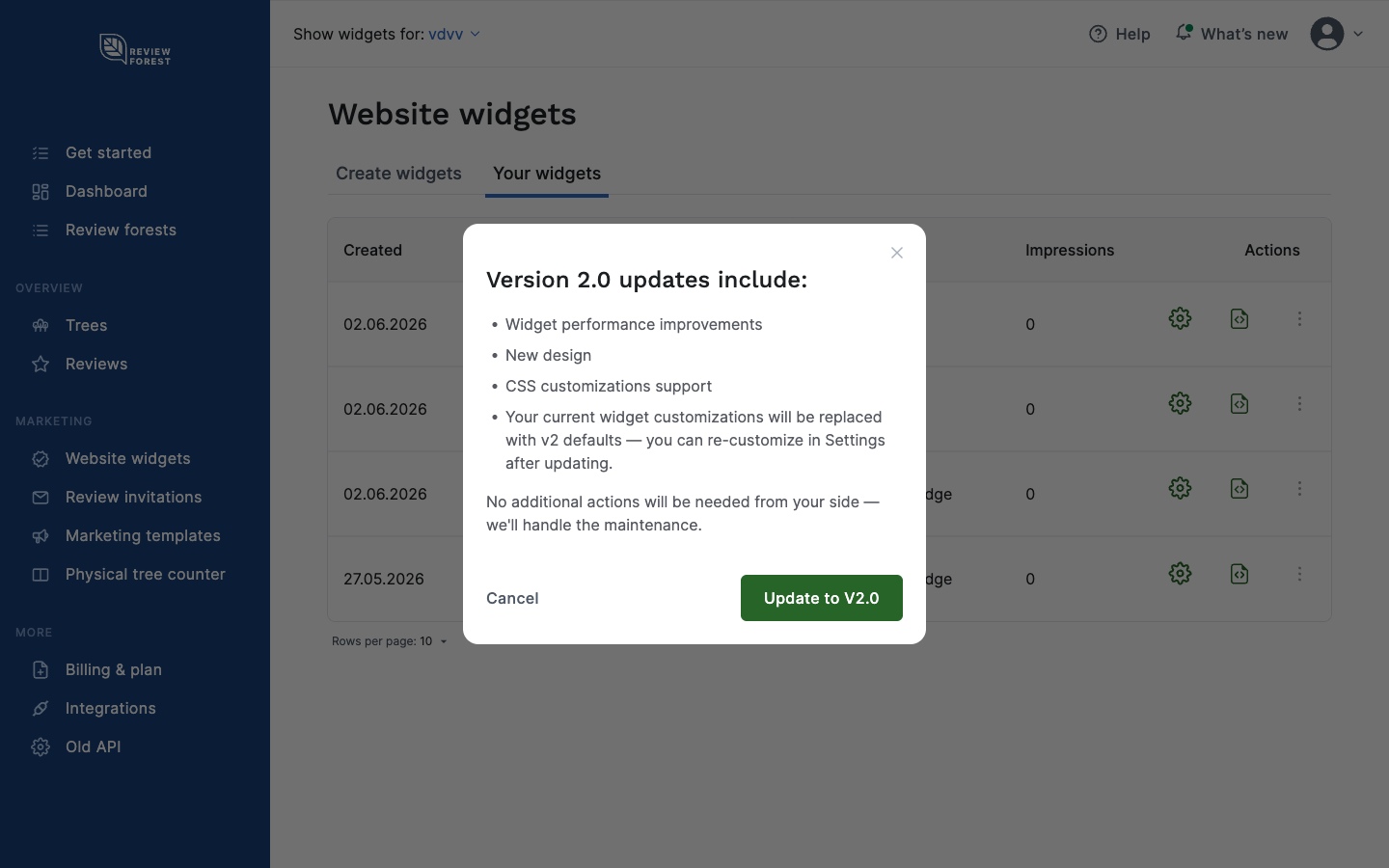
Click Update to V2.0. A short summary of what the update includes appears.
-
Click Update to V2.0 again to confirm. That’s it. The widget code already on your website does not change, and there is nothing to re-paste.
After upgrading
Section titled “After upgrading”-
Open the widget’s settings (the gear icon in the Actions column).
-
Set your colors and style on the Appearance step, and check the live preview.
-
Save. Your website picks up the new look automatically.
Want to fine-tune the look? Head to Customize your widget’s colors and style.